A Guide on Markdown
Markdown is a lightweight markup language with a plain text formatting syntax. So, like HTML, it's a markup language, but we don't use tags or anything like that here. It's a very readable syntax, and it can be converted into HTML/XHTML as well as other formats. Its main purpose is readability. The creators of markdown basically wanted documents to look like plain text documents without any HTML tags or anything like that.
It's widely used for Readme files (GitHub) and documentation. It's also used for forums, blogpost, static site generators, etc. Markdown uses .md as its extension.
Cheatsheet for Markdown
Headings
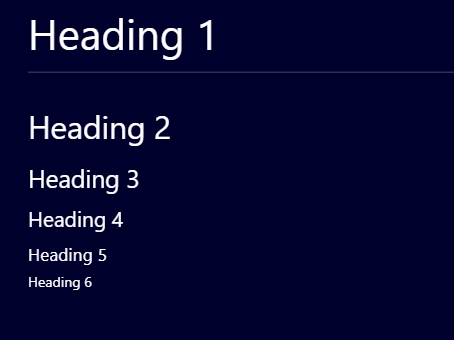
To give the headings, we just need to add # and a space just before the heading. Similar to HTML headings, Markdown also has 6 levels of headings. In markdown, as we decrease the size ofthe heading, we need to add more # before it.
# Heading 1 ## Heading 2 ### Heading 3 #### Heading 4 ##### Heading 5 ###### Heading 6
It will give the following output :
Italics
To make the text italics we have two options. Either we need to use one asterisk (*) symbol on both sides of the text or one underscore(_) symbol on both sides of the text.
*text*
OR
_text_
Both of them will give the following output :

Strong or Bold
To make the text bold, we have two options. Either we need to use two asterisks (*) symbol both sides of the text or two underscores (_) symbol both sides of the text.
*Bold text*
OR
_Bold text_
Both of them will give the following output :

Strikethrough
To make the text strikethrough, we need to use a double tilde(~) on both sides of the text.
~~text~~
This will give the following output:

Horizontal Rule (Line)
To give horizontal lines, we have two options. Either we use three hyphen(-) symbol or three underscore (_) symbol. It will generate a horizontal line just like this
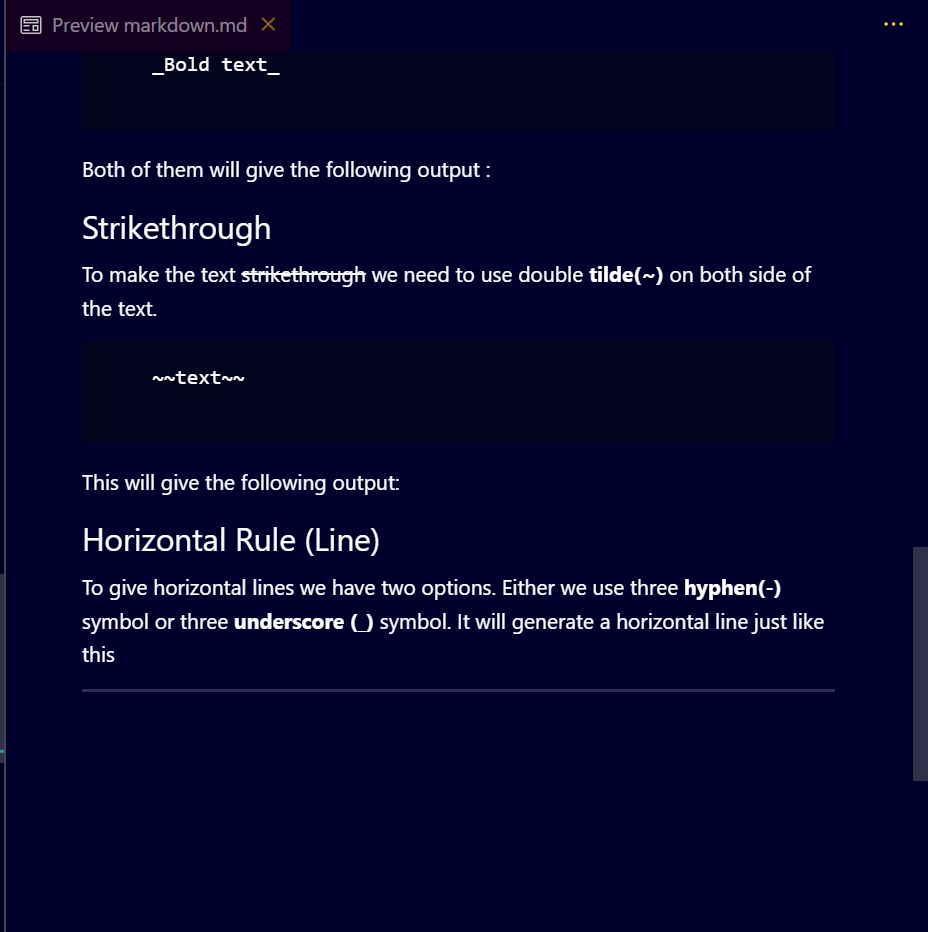
It's equivalent to <hr> tag of HTML.
Block Quote
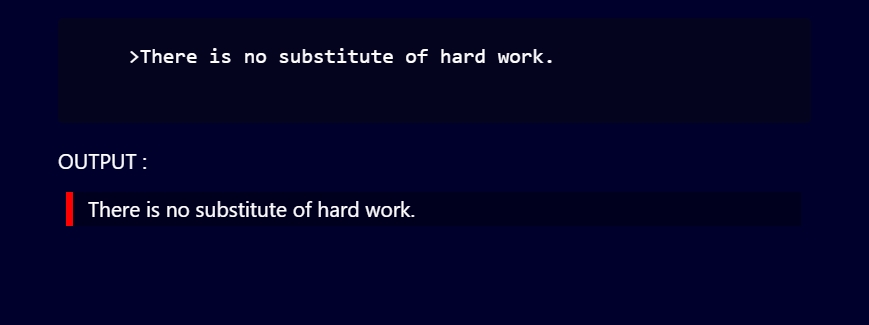
To write blockquotes, we use the greater-than (>) symbol just before the text.
>There is no substitute of hard work.
OUTPUT :
Link
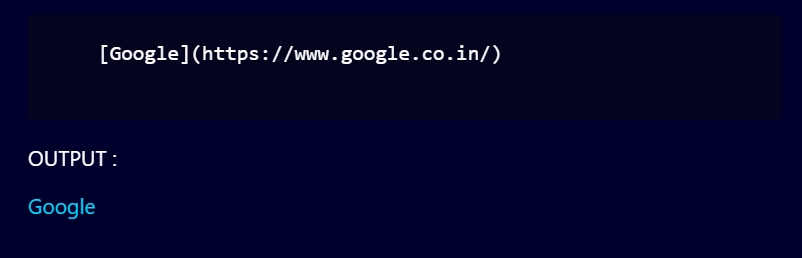
To display the link, we need to use brackets [ ] in which the text part will be written and just after that parenthesis ( ) will be used in which the link will be written.
[Google](https://www.google.co.in/)
OUTPUT :
We can add a hover feature on the text so that when we hover over the text, it displays the title of that website. For that, we just need to write the title of the website just after the link inside double quotes inside the parentheses. There should be a space between the link and the title of the website.
[Google](https://www.google.co.in "Google")
OUTPUT :
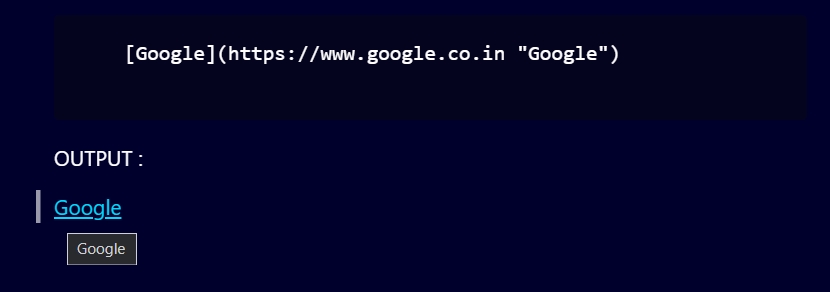
As you can see, I have hovered the cursor over the text, and it's showing the title of the website, which in this case is Google.
Image
To insert an image, the syntax is similar to the link. We just need to add the exclamation (!) symbol before the text bracket.

OUTPUT :
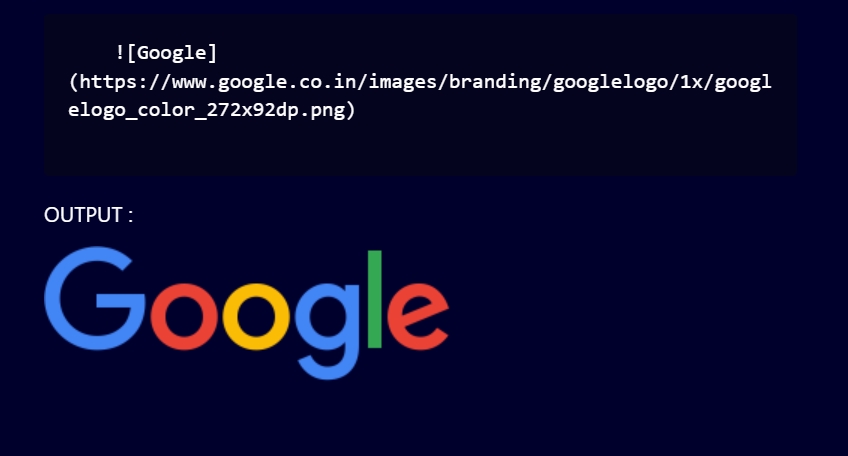
NOTE : Text inside the bracket is the alternate text which will only be visible if image won't be visible by any chance.
Ordered List
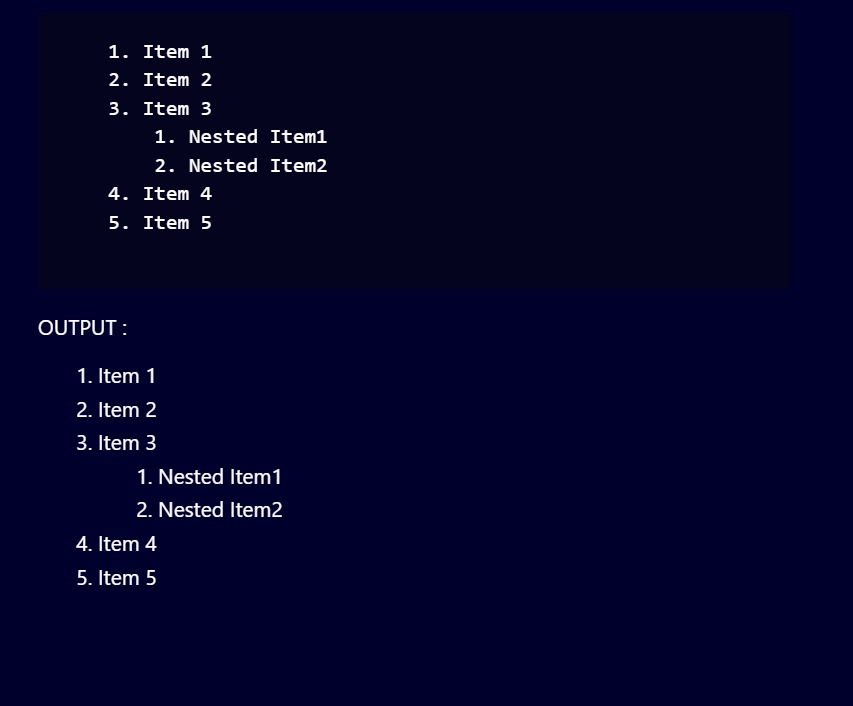
To write an ordered list, we just need to use numbers.
1. Item 1 2. Item 2 3. Item 3 1. Nested Item1 2. Nested Item2 4. Item 4 5. Item 5
OUTPUT :
Unordered List
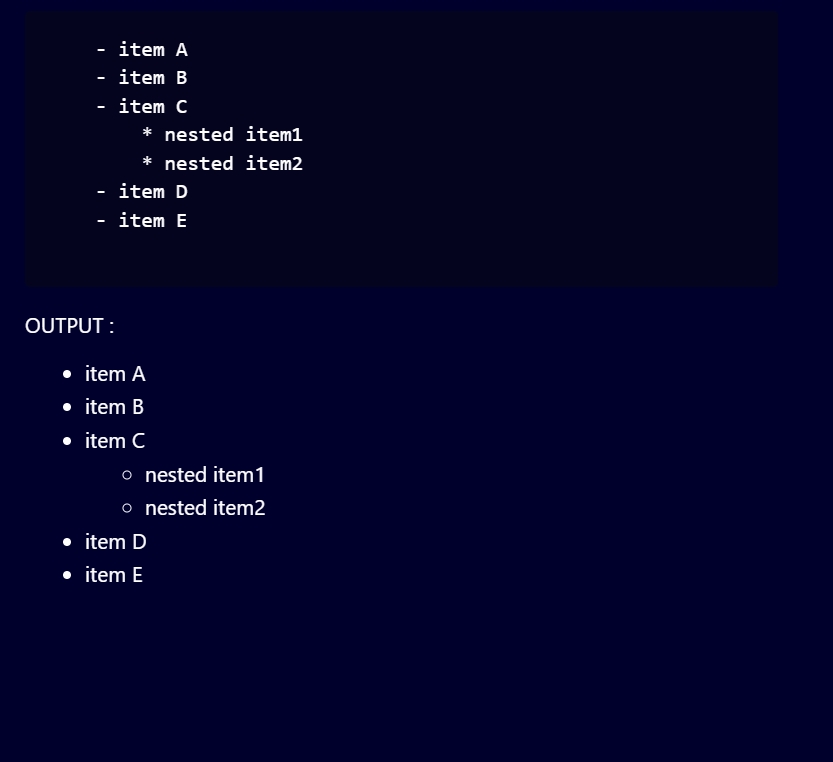
To write an ordered list, we need to use astreisk (*) or a hyphen (-) symbol.
- item A - item B - item C * nested item1 * nested item2 - item D - item E
OUTPUT :
Inline Codeblock
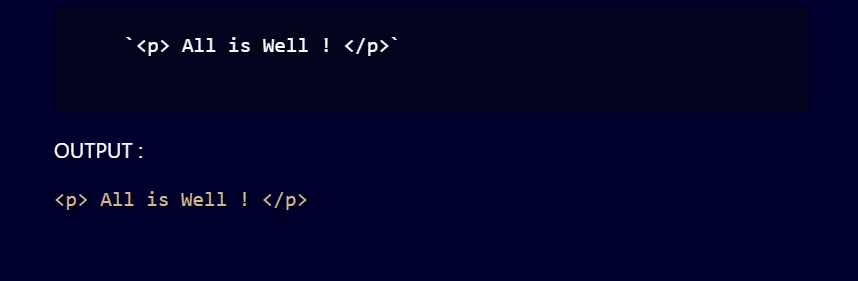
We use the backtick (`) symbol to write single-line code or some specific tags.
`<p> All is Well ! </p>`
OUTPUT :
Code Snippets
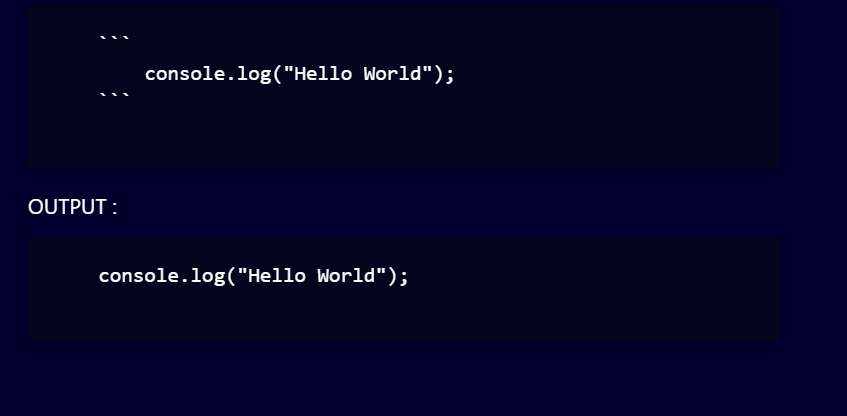
We use the backtick (`) symbol 3 times to write multi-line code snippets.
console.log("Hello World");
OUTPUT :
We can insert the name of that language whose code snippets have been written to give it a nice effect.
Example :
Javascript function myFunction(p1, p2) { return p1 * p2; }
OR
Python def my_function(): print("Hello from a function")
It will give the following output :
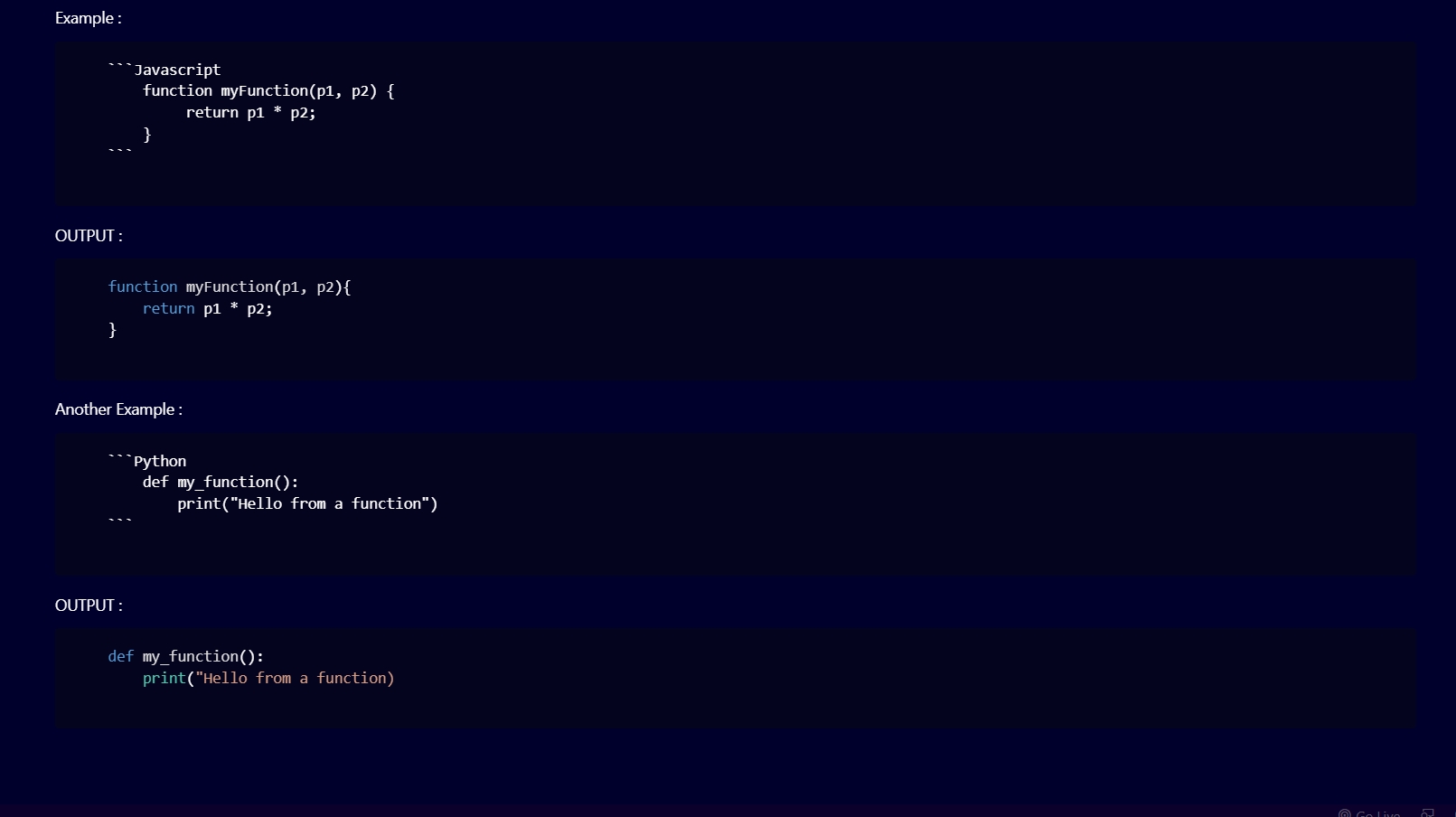
So, adding the language name above makes it look cooler and more colourful.
Task Lists
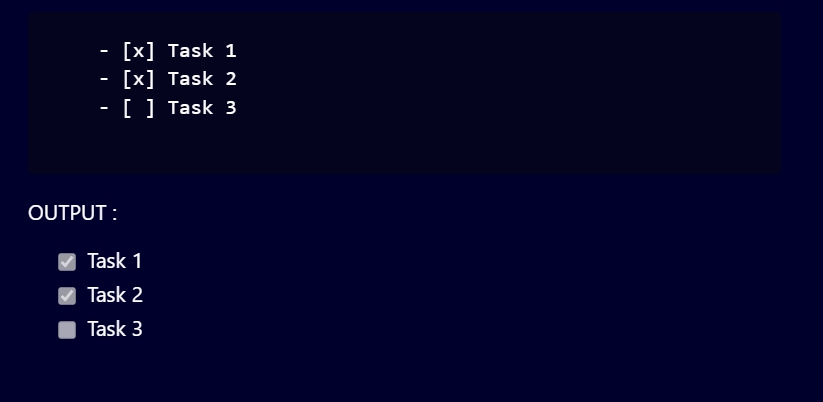
To create task lists, we need to use the hyphen (-) symbol, then bracket [] inside which, if our task is incomplete, then put x it there, or if it's complete, then we need to just leave it empty. And after the bracket, we need to just put the name of the task,
- [x] Task 1 - [x] Task 2 - [ ] Task 3
OUTPUT :
NOTE : There should be a space between hyphen and bracket.
Tables
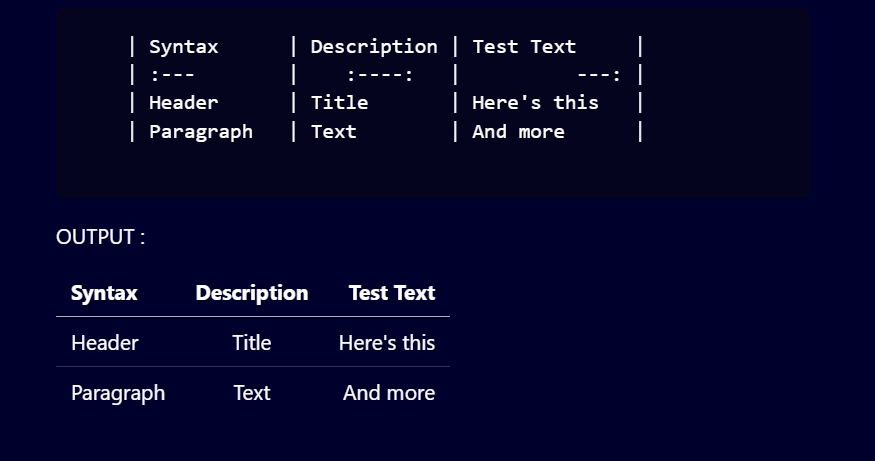
For tables, the syntax is kind of tough. That's the reason it's not recommended. But yeah, it definitely gives a nice outlook.
| Syntax | Description | Test Text | | :--- | :----: | ---: | | Header | Title | Here's this | | Paragraph | Text | And more |
OUTPUT :
So, that's it as of now. I know there are more features available for markdown, but this much would be more than enough to work on markdown files.