Git and GitHub Masterclass
What is Git
Git is a tool that allows you to version control.
Suppose we create a file in which JavaScript code is written on 20th July 2022. Then on 21st July, we did some minor changes to it. And then again on 22nd July, 23rd July and 24th July we did some insignificant changes in it simultaneously. But we would only have details of the 1st and the last version i.e changes we made on the 20th and 24th of July. Rest all modifications will get lost, which is not good for version control.
We need a very smart tool to do this version control, which can highlight all the changes made in each updates whether it's the addition or deletion of stuff.
If we want to go and check the source code we had on 23rd of July, 2022, then we must have a powerful tool which have this sort of functionality. And GIT allows us to do that. Git is basically a version control system that allows you to version your code or files.
How to initialise a Git
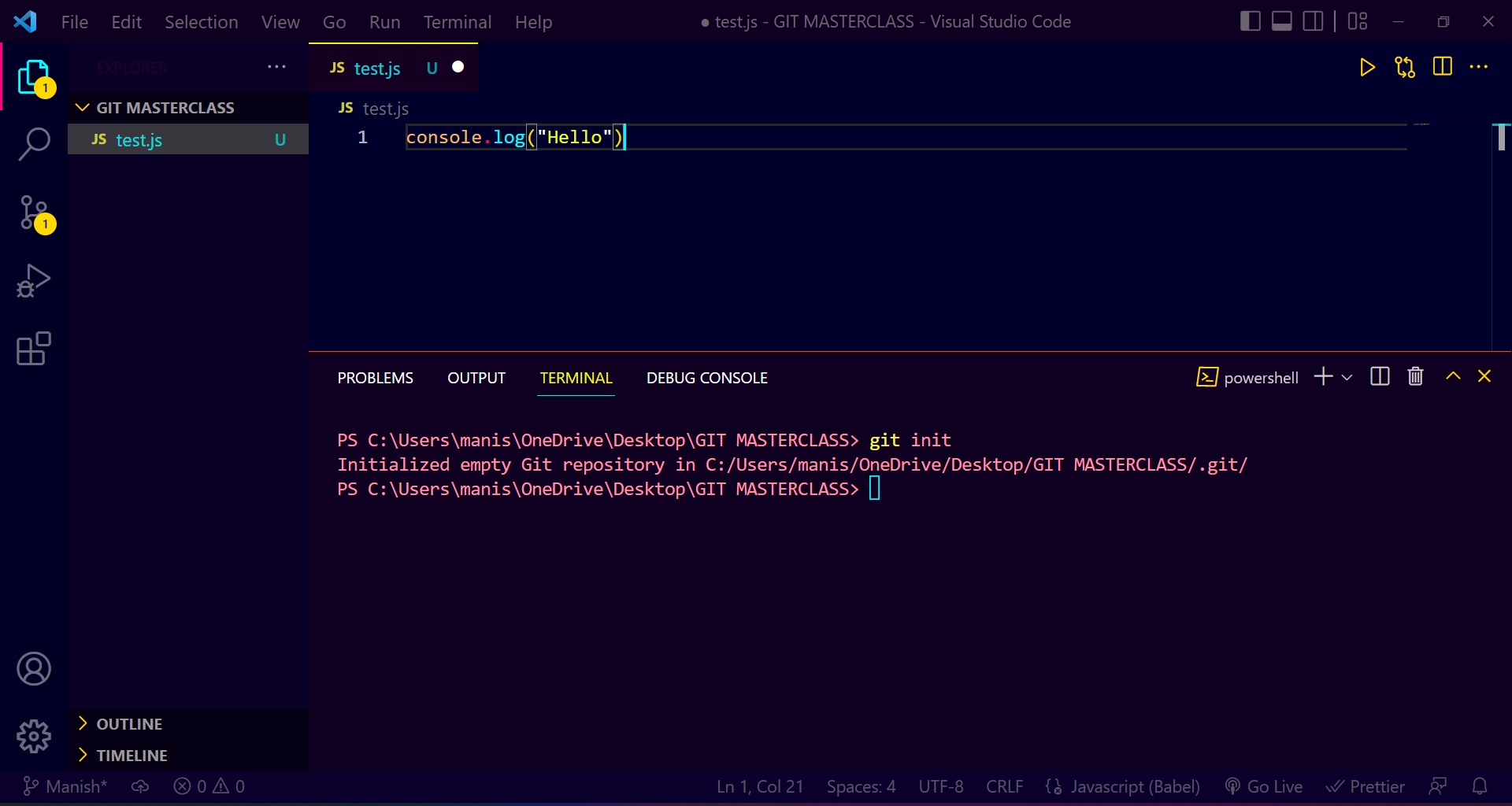
As you can see in the above picture, to intialize git in a folder, we need to use the following> command :
git int
But to do that, you need to be in that particular folder in your terminal. git init basically initialises an empty git repository. All the tools and magics of git resides in the .git folder, which is a hidden folder. You'll not be able to see it in the terminal by using the ls command.
It is created for every folder separately, which means it won't affect your computer globally. It will only affect the folder where you have done git init. If you initialize the git in any folder, that folder will allow you to do git commands.
How to see the status of git
To see the status of a git we use the following command :
git status
If you write git status in some other folder in which you haven't initialised git, then it will give an error with a message
fatal: Not a git repository (or any of the parent directories): .git
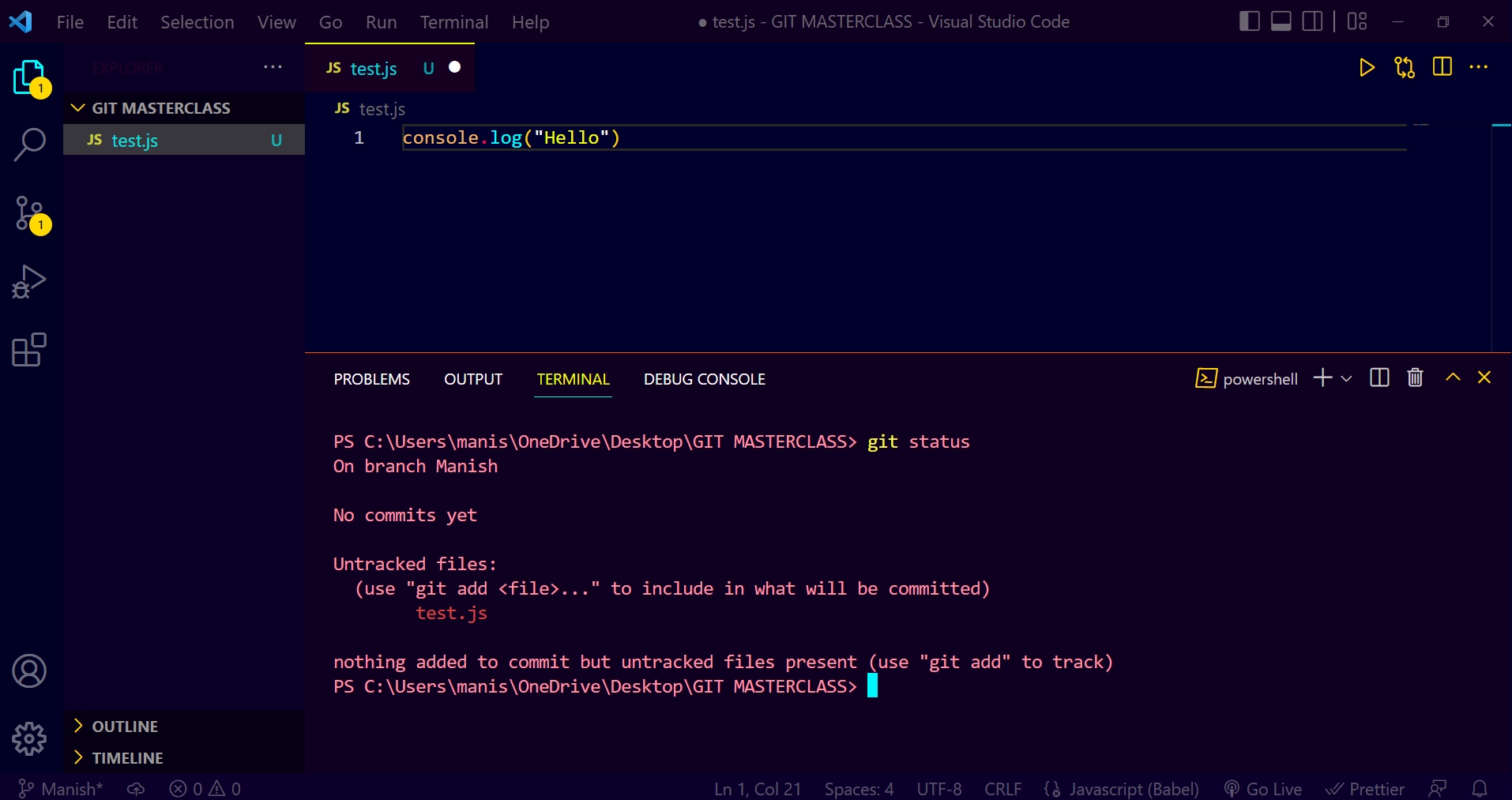
As you can see in the above picture, git status gives information about what branch you're in, what commits you have made and how many tracked/untracked files there.
What is a branch
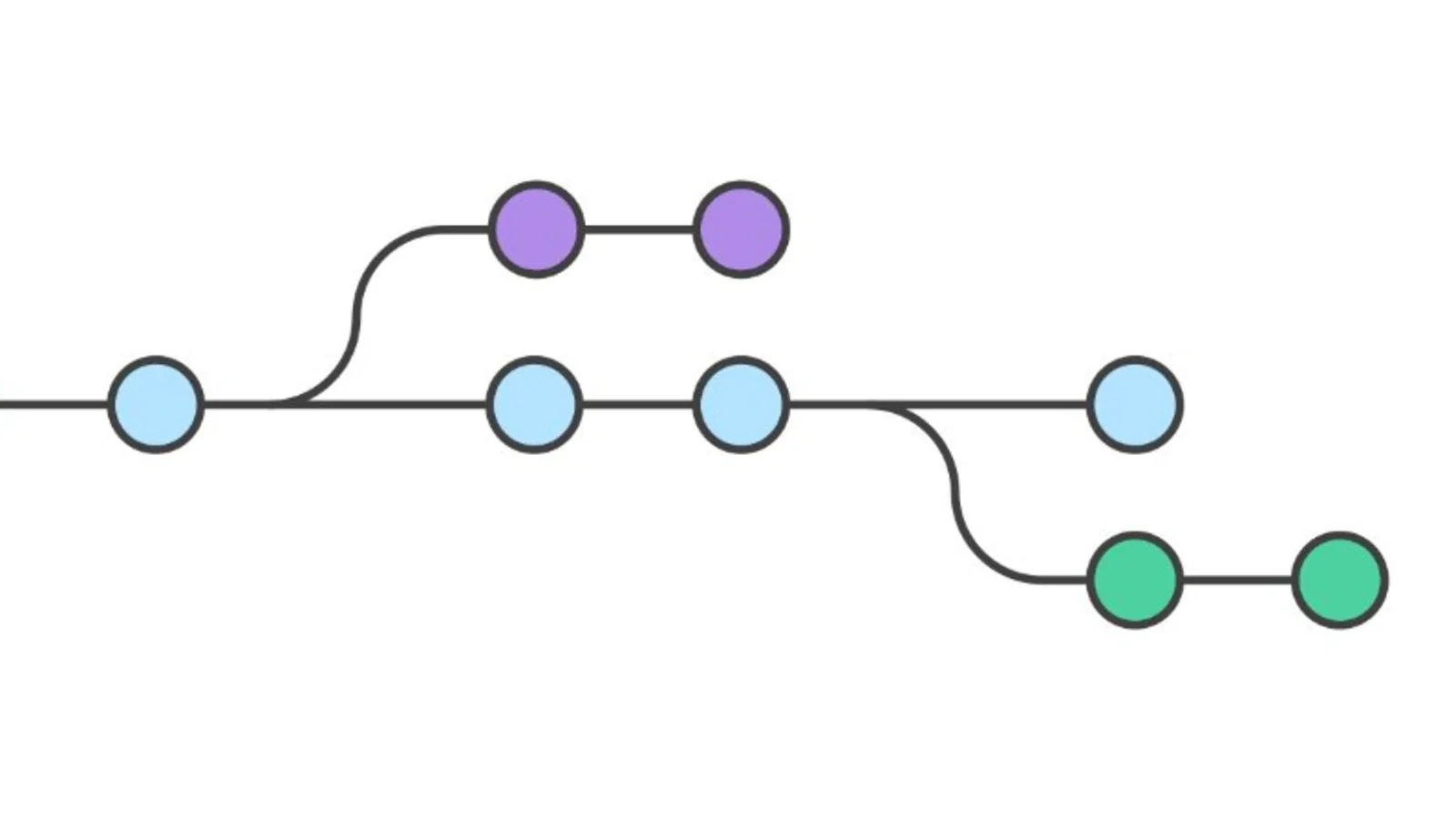
When we do a git init, we create a master/main branch. It is the original version.
Suppose you create a JavaScript file in which you write some simple code
console.log("Hello World");
This is the original code. Now, you don't want to change the original code. You want to keep the original code. But you want to do some minor changes or want to experiment with something. For example, you want to write Hello Universe instead of Hello World. Then, from the main branch, you take out another branch. Since it is coming from the main branch, this branch will have a copy of your main code.
How to move into a new branch
To move into a new branch, use the following command :
git checkout -b dev
It will checkout (create and move) to a new branch. It will take all the stuffs of old branch and create a new one and name it as dev.
But if you want to move back to an existing branch/main branch, then -b is not required.
git checkout master
Staging and Committing
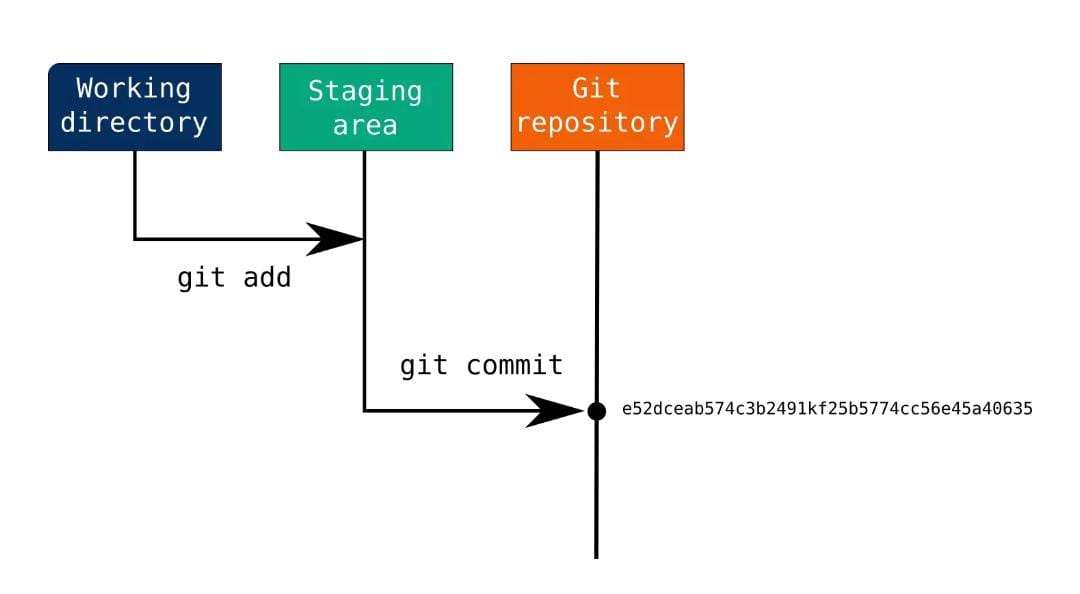
To stage a file, use the following command :
git add test.js
git add takes a modified file in your working directory and places the modified version in a staging area.
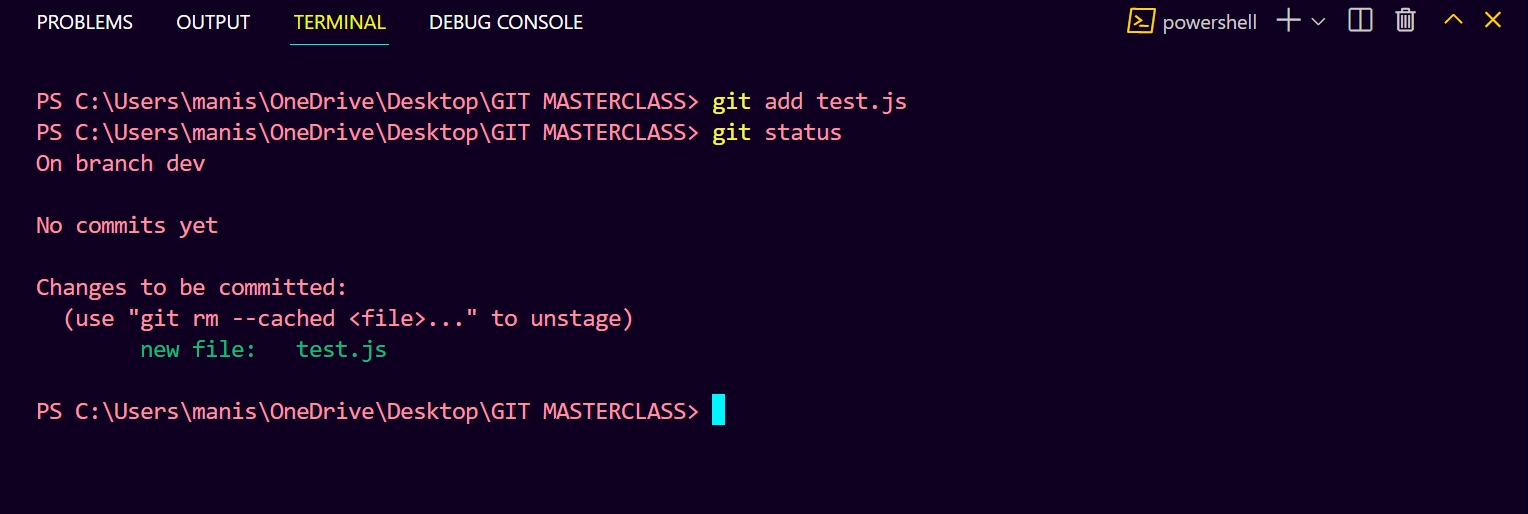
As you can see in the above picture, after using git add test.js file is added to the git.
git add .
It will add all files in git which is not good, as it will add those files also which are not required. Hence, it may create a problem. So, it's not recommended.
To commit a file, use the following command :
git commit -m "message"
It is used to track the staged files after being added by git add.
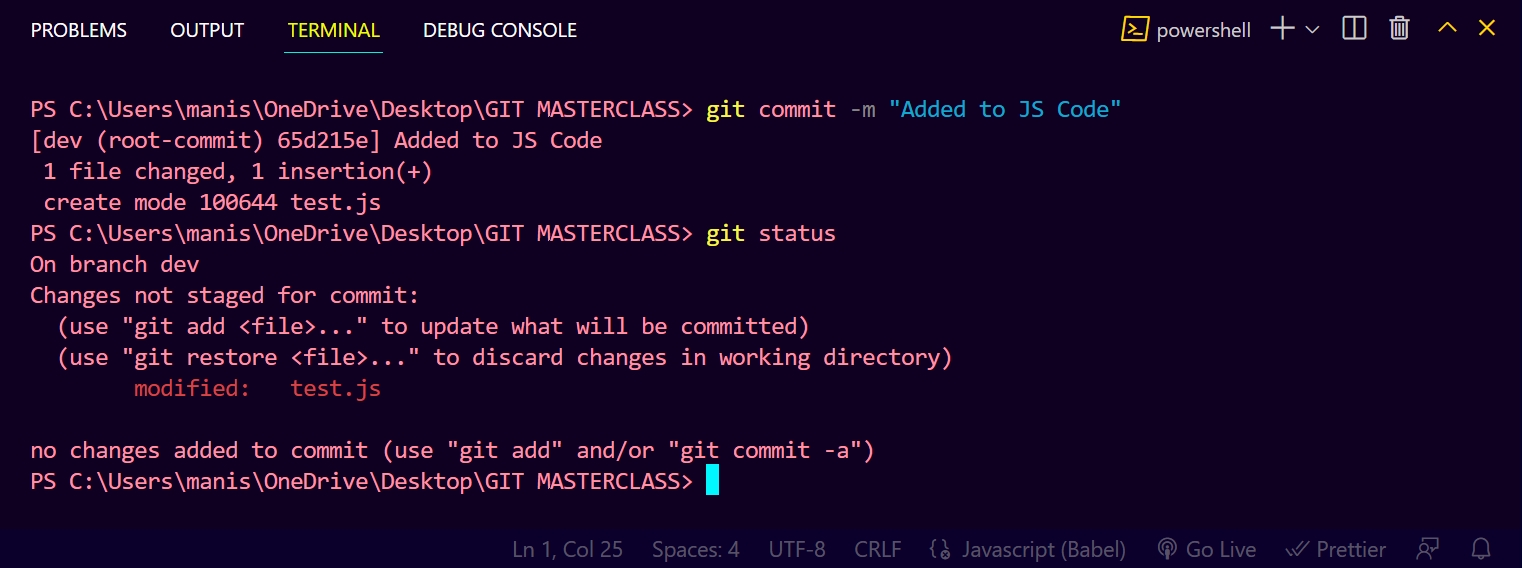
So, now test.js file is both committed and tracked.
How to restore the staged file
To restore the staged file, use the following command :
git restore --staged filename
It will untrack/unstage the staged file. You can only able to restore the deleted file if it is committed. Just by staging the file, you can't restore it.
What is GITHUB

GitHub is the same git repository, just that it is stored onthe cloud. It's just basically a UI version of git.
What is Git Clone
It is a command which is used to make a local copy of a remote repository. It helps us to access the repository through a remote URL.
Command for git clone :
git clone <link>
Git push and pull
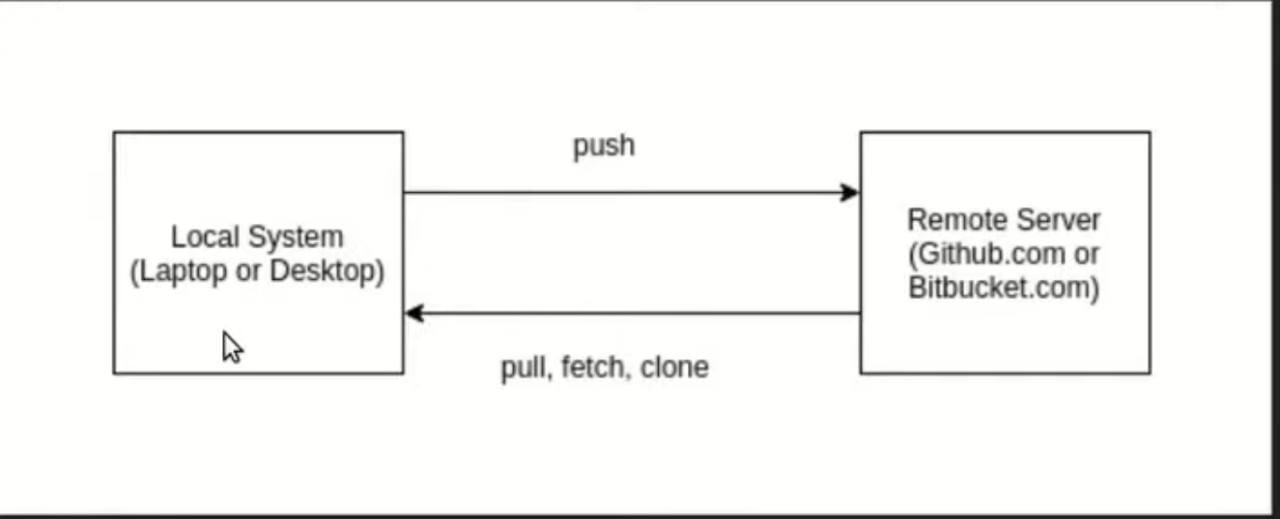
The process of sending our changes from our local machine to remote machines is called push. Whatever the current state of your git (local), it will get published to its origin(GitHub).
git push origin main
Here, origin main is the branch name. Origin refers to the remote machine (GitHub), and main refers to the local machine (git).
If we push again, then it will show the message "Everything up-to-date". It compares the local changes and GitHub changes to see if everything is up-to-date or not.
On the other hand, the process of taking all the new changes which might have been made by other developers to our local system is called pull.
git pull origin main
Top 20 Git Commands
Let's summarise this masterclass with the Top 20 Git Commands.
-
git config --global user.emailgit config --global user.nameIt sets the global username and email for Git (locally)
-
git initIt initialises an empty git repo on the local
-
git clone <respository URL>It clones any code from GitHub to the local
-
git add <filename>It adds file/stage to git
-
git add .It adds all the files to git
-
git commit -m "<your commit message>"It commits all the staged files to git
-
git statusIt shows the status of your git repository
-
git branchIt shows the branches of your git repository
-
git checkout -b <branch name>It's used to checkout to a new branch
-
git checkout <branch name>It's used to checkout to an existing branch
-
git branch -d <branch name>It removes a branch from Git.
-
git remote -vIt shows the remote origin URL
-
git remote add origin <your remote git URL>It adds a remote origin URL
-
git remote remove originIt removes the remote origin URL
-
git fetchIt fetches all the remote branches
-
git push origin <branch name>It pushes your local changes to the remote branch
-
git pull origin <branch name>It pulls your remote changes to the local branch
-
git merge <branch name>It allows you to merge branches from Git
-
git rebase <branch name>It allows you to integrate changes from one branch to another
-
git logIt checks your git commits and logs.
So, this is it. I know it's not totally covered yet. There are a few more advanced things remaining, which I will cover in the next blog. Till then, Stay Tuned!